From Good Fork
How to Save Recipes from TikTok and Instagram (and Actually Find Them Again)
Saving recipes from TikTok and Instagram is easy, but finding them again when you're ready to cook can be a challenge. Learn how to organize your saved videos, find ingredients and instructions hidden in posts, and turn your favorite recipes into meals you can actually make.
Found a recipe on TikTok or Instagram that looks delicious? Saving the video is easy. Finding it again when you're ready to cook is another story.
TikTok Favorites and Instagram Collections let you bookmark posts, but they don't necessarily save the actual recipe. You might still need to hunt through the caption, replay the video for measurements, or follow a "link in bio" to find the ingredients. And if you're anything like us, there's a good chance you've saved dozens of recipes that you've never gotten around to making.
Fortunately, there are a few ways to save recipes from social media without losing track of them. We'll walk through how to organize recipes inside TikTok and Instagram, find instructions hidden in videos, and keep everything in one place so it's ready when you want to cook.
In this guide:
How to save recipes on TikTok
TikTok makes it easy to save videos using Favorites, which works much like bookmarking a page in your browser. You can also organize those videos into Collections, giving you a way to separate cooking ideas from everything else you've saved.
If you regularly discover recipes while scrolling TikTok, creating a dedicated collection is a good place to start.
Add a TikTok recipe to Favorites
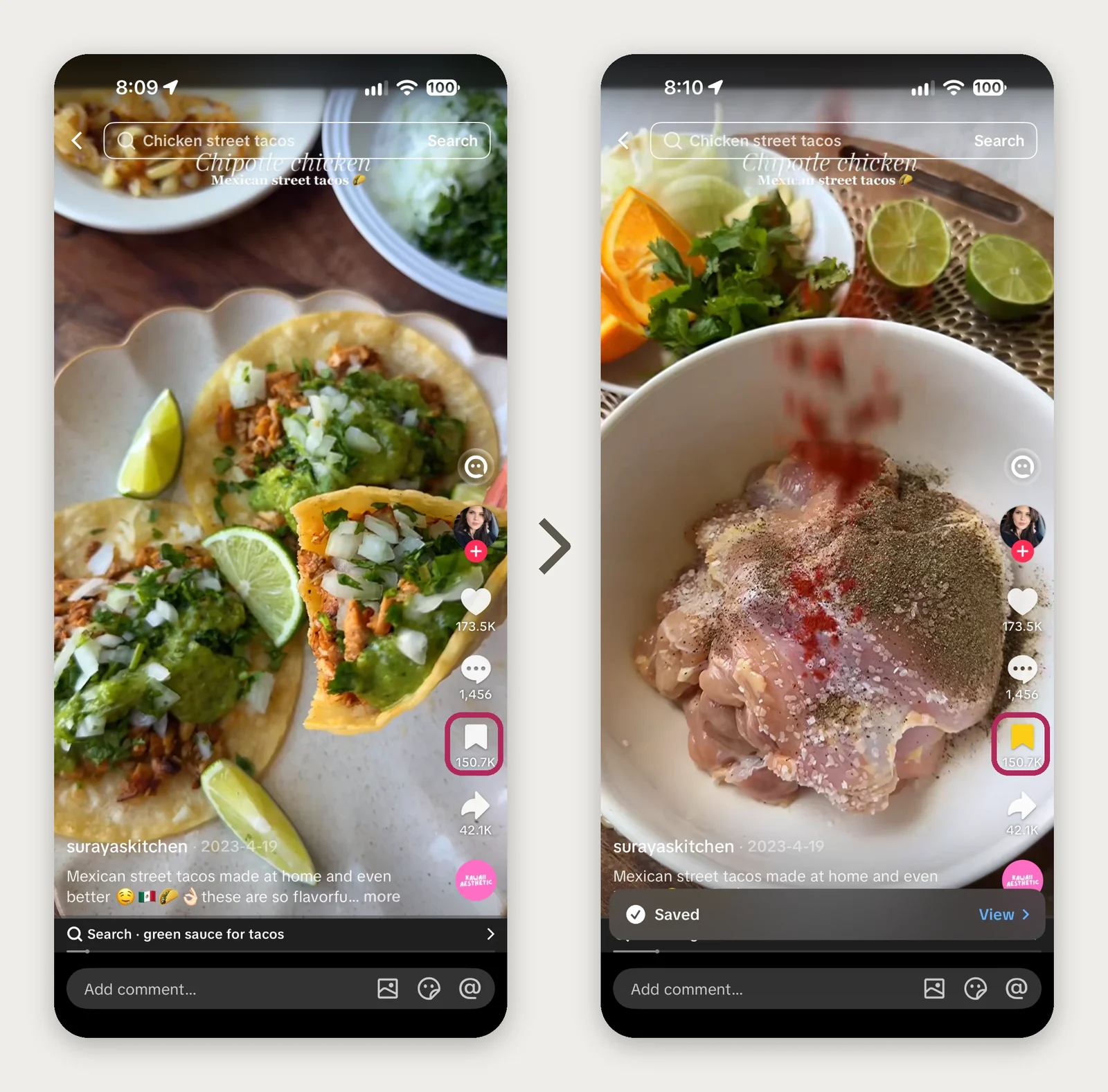
Open TikTok and find the recipe video you want to save.
Tap the bookmark icon on the right side of the video.
The bookmark turns yellow, indicating that the video has been added to your Favorites.
You don't need to download the video or follow the creator to save it. TikTok will keep it in your Favorites so you can return to the post later.
Make a collection for your saved recipes
Collections work like folders, allowing you to group your saved videos by topic. You could create one collection for all your recipes or separate them into categories like weeknight dinners, baking, and meal prep.
To create one:
Open your TikTok profile.
Tap the bookmark icon to open Favorites.
Select Collections, then Create collection.
Give your collection a name, such as "Recipes" or "Weeknight Dinners."
Choose the saved videos you'd like to include.
You can also add videos to a collection as you save them. After tapping the bookmark on a video, look for the option to add it to a collection.
Find your saved TikTok recipes later
When you're ready to revisit something you've saved, open your TikTok profile and tap the bookmark icon. From there, you can browse all your Favorites or open an individual collection.
Organizing recipes this way is especially helpful once you've accumulated more videos than you can reasonably scroll through. Just remember that you're still saving the original video, so you may need to rewatch it to find the ingredients or cooking instructions.
How to save recipes on Instagram
Instagram has a similar feature called Saved, which lets you bookmark Reels, photos, and carousel posts. Like TikTok, it also supports Collections, so you can organize your cooking inspiration without having everything mixed together.
For example, you might keep quick dinners in one collection, desserts in another, and recipes you want to try over the weekend in a third.
Save an Instagram Reel or post
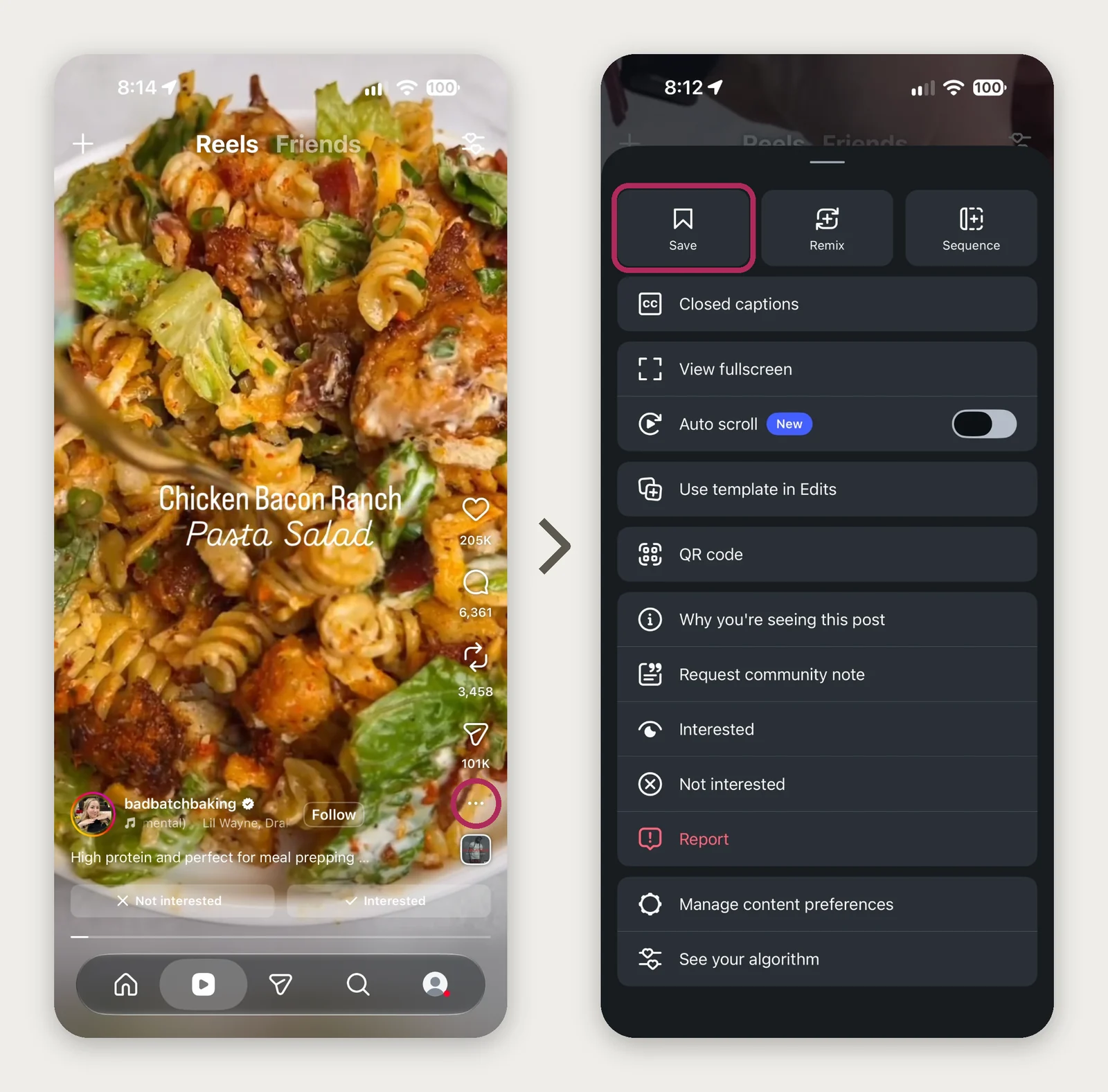
Open the Reel or post you'd like to save.
Tap the bookmark icon. If you're watching a Reel and don't see it, open the three-dot menu and select Save.
Instagram adds it to your Saved posts.
Your saved posts are private unless you choose to add them to a collaborative collection, so you can save recipes without anyone else seeing what you've bookmarked.
Make an Instagram collection for recipes
If you're saving a lot of cooking content, creating a collection makes it easier to return to a particular recipe.
Open Instagram and go to your profile.
Tap the three-line menu in the upper-right corner.
Select Saved.
Tap the plus icon to create a new collection.
Give it a name, then select the posts you want to include.
You can also press and hold the bookmark icon while viewing a post to save it directly to a collection. This is handy when you come across something you want to make and don't want to organize it later.
Find your saved Instagram recipes
To find your recipes, go to your profile, tap the three-line menu, and open Saved. You'll see your saved posts alongside any collections you've created.
Instagram Collections are useful for keeping everything organized, particularly if you follow a lot of food creators. However, there's an important difference between saving a post for inspiration and saving the actual recipe so you can cook from it.
Why a saved post isn't a saved recipe
We've all saved something that looked delicious, only to forget about it until weeks later. By the time we remember it, we can't recall who posted it, what the dish was called, or which collection we put it in.
Collections certainly help, but they don't solve everything. There are a few limitations to relying on saved posts for your recipes:
Searching by ingredient is difficult. If you have chicken thighs in the fridge and want to find something that uses them, you may end up scrolling through dozens of videos.
The instructions aren't always written down. Sometimes the ingredients are spoken aloud, shown briefly on screen, or hidden in the comments.
Saved posts don't connect to your meal plan or grocery list. You'll still need to figure out what you're cooking, how much of each ingredient you need, and what to buy.
The original post can disappear. If a creator deletes a video or makes their account private, your saved post may no longer be available.
There's nothing wrong with using TikTok Favorites or Instagram Collections to collect ideas. They're great for discovering what you might want to cook. But once you've decided to make something, it's much easier to have the ingredients and instructions saved somewhere you can actually use them.
Where the recipe actually is
One of the trickiest things about saving recipes from TikTok and Instagram is that creators don't all share their instructions in the same way. Some write everything in the caption, while others explain the recipe as they cook, add measurements over the video, or send viewers to their website.
Before you start copying screenshots or writing down ingredients, it helps to figure out where the recipe information is coming from.
Where to look | How to save it yourself | How Good Fork helps |
|---|---|---|
Video caption | Copy the caption or take a screenshot | Reads the ingredients and instructions |
Spoken instructions | Rewatch and write everything down | Reads spoken recipe details |
Text on screen | Pause and screenshot the measurements | Reads ingredients shown in the video |
Creator's comments | Find and copy the recipe comment | Checks the top comments for recipe information |
Link in bio | Find the recipe on the creator's website | Locates and imports linked recipes |
Missing measurements | Estimate quantities or ask the creator | Suggests amounts and marks them for review |
1. The recipe is in the caption
This is usually the easiest situation. The creator has included the ingredients, measurements, or cooking instructions directly below the video, although you may need to tap More to expand the full caption.
You can copy the text into Notes if the platform allows it, or take screenshots and use your phone's text recognition feature to capture the instructions. If you're using Good Fork, sharing the post or pasting its link lets the app read the caption and organize the information into a recipe with an ingredient list and cooking steps.
2. The creator says the recipe out loud
Not every cooking video comes with a written recipe. Sometimes a creator walks through the ingredients as they prepare the dish, saying things like "add two tablespoons of olive oil" or "bake this for 25 minutes at 400 degrees."
That works well when you're watching someone cook, but it can be frustrating when you want to make the dish yourself. You may need to replay the video several times, pausing to catch each measurement or instruction.
Good Fork can read spoken recipe information from supported TikTok and Instagram videos, even when the creator hasn't included the instructions in the caption. Instead of trying to transcribe the video yourself, you can import the recipe and review the ingredients and steps before saving it.
3. The recipe is in the creator's comments
Sometimes you'll open a video expecting to find the recipe in the caption, only to see "Recipe in the comments!" instead.
In those cases, open the comment section and look for a reply from the creator. The recipe may be pinned near the top, or you might need to scroll through the discussion to find it. Once you've located the instructions, you can copy the text or take screenshots to save for later.
Good Fork also checks the top comments for recipe information from the creator. It can use those details when importing the recipe, even if the ingredients weren't included in the original caption. There is a limit, though: Good Fork checks the first 50 comments it retrieves, so recipes buried farther down may need to be copied manually.
4. The recipe is behind a "link in bio"
If you follow food bloggers on Instagram or TikTok, you've probably encountered this one. The creator shares a short video showing how a dish comes together, but the full recipe lives on their website. Instead of listing the ingredients, the caption simply says something like "Full recipe at the link in my bio."
Finding the recipe yourself usually means opening the creator's profile, following their website link, and searching for the dish. Sometimes the link takes you directly to the recipe, while other times it opens a homepage or a collection of links that you have to navigate.
Good Fork can look for the creator's linked recipe page and import the information from there. If the recipe is spread across multiple accessible pages, it can gather the relevant details and bring them into a single recipe. The original source is credited, so you can always return to the creator's website.
5. The creator doesn't include exact measurements
Some cooking videos are more about inspiration than precise instructions. You might see "a splash of cream," "a handful of spinach," or "season to taste," without any indication of how much to use.
That's perfectly fine when you're comfortable improvising, but it makes planning and grocery shopping a little more difficult. You can estimate the amounts yourself or look for a similar recipe to use as a reference.
Good Fork can also suggest missing measurements based on the information available in the recipe. These estimates are marked as Draft, so you know which ingredients need reviewing before you cook. It's worth paying particular attention to these amounts when baking or preparing dishes where the proportions really matter.
Keeping your recipes organized in an app
If you only save a recipe once in a while, TikTok Favorites or Instagram Collections might be all you need. But if you've collected recipes from several different places, keeping track of everything can become surprisingly time-consuming.
A dedicated recipe app can help bring those recipes together, making it easier to find what you've saved and use it when you're ready to cook. The important thing is finding one that works with the types of recipes you actually collect.
What to look for in an app to save recipes
Not every recipe-saving app handles social media content the same way. Some primarily work with traditional recipe websites, while others can read information directly from videos.
If you frequently save recipes from TikTok and Instagram, here are a few features worth looking for:
It saves the actual recipe. Look for an app that stores the ingredients and instructions, rather than relying entirely on a link to the original post.
It can read video content. This matters when ingredients are spoken aloud or displayed on screen instead of written in the caption.
It handles comments and linked websites. Otherwise, you'll still need to track down recipes that creators share outside the video.
It lets you organize and edit recipes. You should be able to search your collection and correct any ingredients or instructions that need adjusting.
It connects to a meal plan and grocery list. That makes it easier to turn recipes you've saved into meals you're actually going to cook.
It combines ingredient quantities. If two recipes both call for garlic, your grocery list should account for the amount needed across both dishes.
It's also worth checking whether the app supports your phone, how many recipes you can import for free, and whether features like household sharing require a subscription.
You can also save recipes with screenshots and Notes
You don't necessarily need a dedicated recipe app to keep track of recipes you find online. Taking screenshots and organizing them in Apple Notes or Google Keep is a free, straightforward way to build your own collection, especially if you only save recipes occasionally.
The tradeoff is that you'll need to do a little more work yourself. Depending on how the creator shares the recipe, you may need to piece together ingredients from several screenshots, write down the instructions, and keep a separate grocery list. Over time, that can become difficult to manage, particularly when you're planning multiple meals for the week.
If you've ever found yourself standing in the grocery store scrolling through screenshots to figure out whether you needed one onion or two, you know how frustrating that can be. A dedicated recipe app can take care of much of that organizing for you, so you can spend less time tracking down ingredients and more time actually cooking.
How to save TikTok and Instagram recipes to Good Fork
We built Good Fork to make it easier to take recipes you've discovered online and turn them into meals you can actually make.
Whether you've found something on TikTok, Instagram, Pinterest, a food blog, or even a page in a cookbook, Good Fork helps bring your recipes into one collection. Instead of relying on a saved video, you'll have the ingredients and instructions ready to use whenever you want to cook.
There are a couple of easy ways to import recipes from TikTok and Instagram.
Share a recipe directly from TikTok or Instagram
If you have Good Fork installed on your iPhone, you can share a recipe directly from either app without needing to copy the ingredients yourself.
Open the TikTok video or Instagram Reel containing the recipe.
Tap Share.
Select Good Fork from the available sharing options. You may need to tap More to find it.
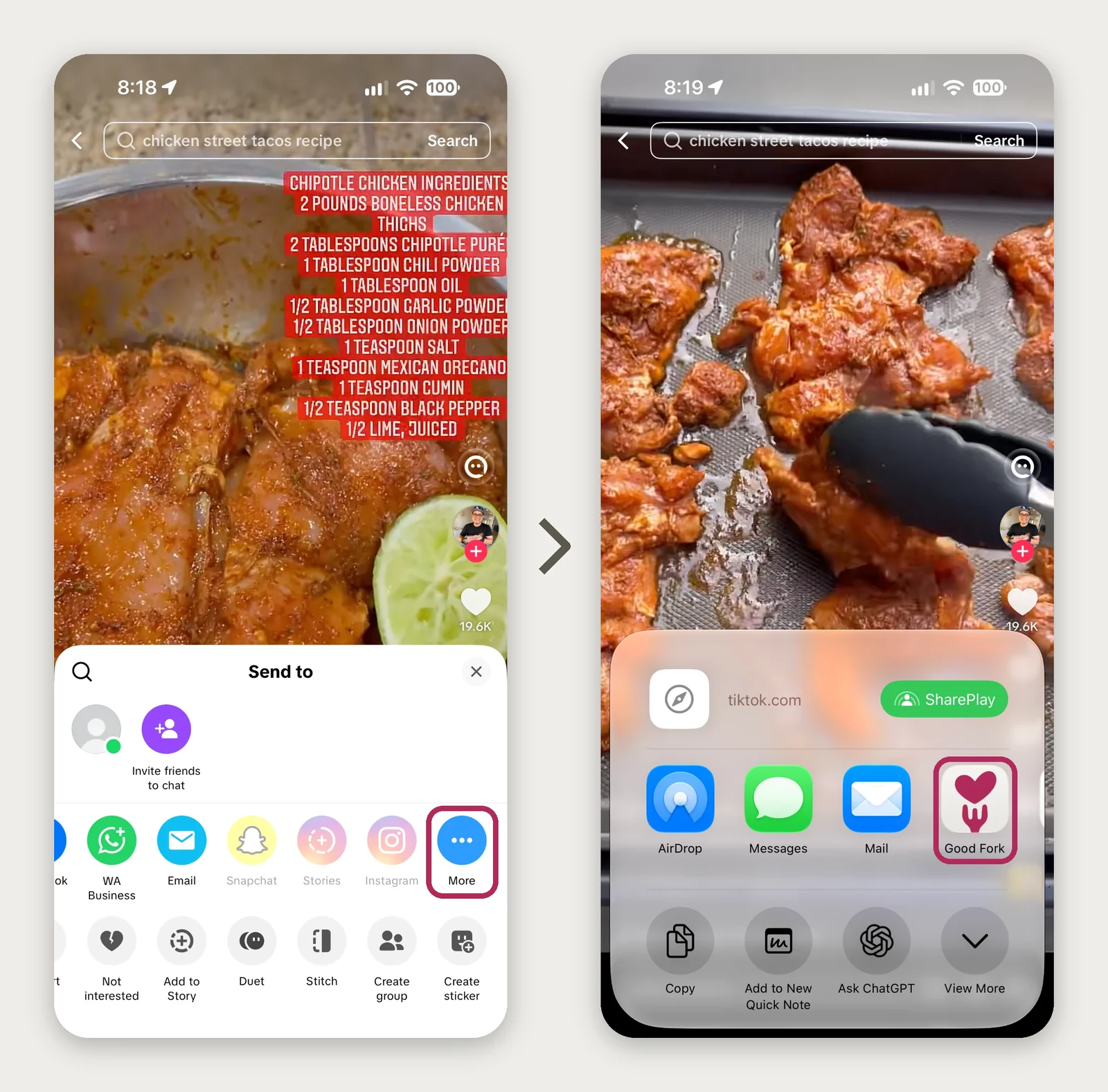
Good Fork will read the post and prepare the recipe for you to review.
Check the ingredients and instructions, then save the recipe to your collection.
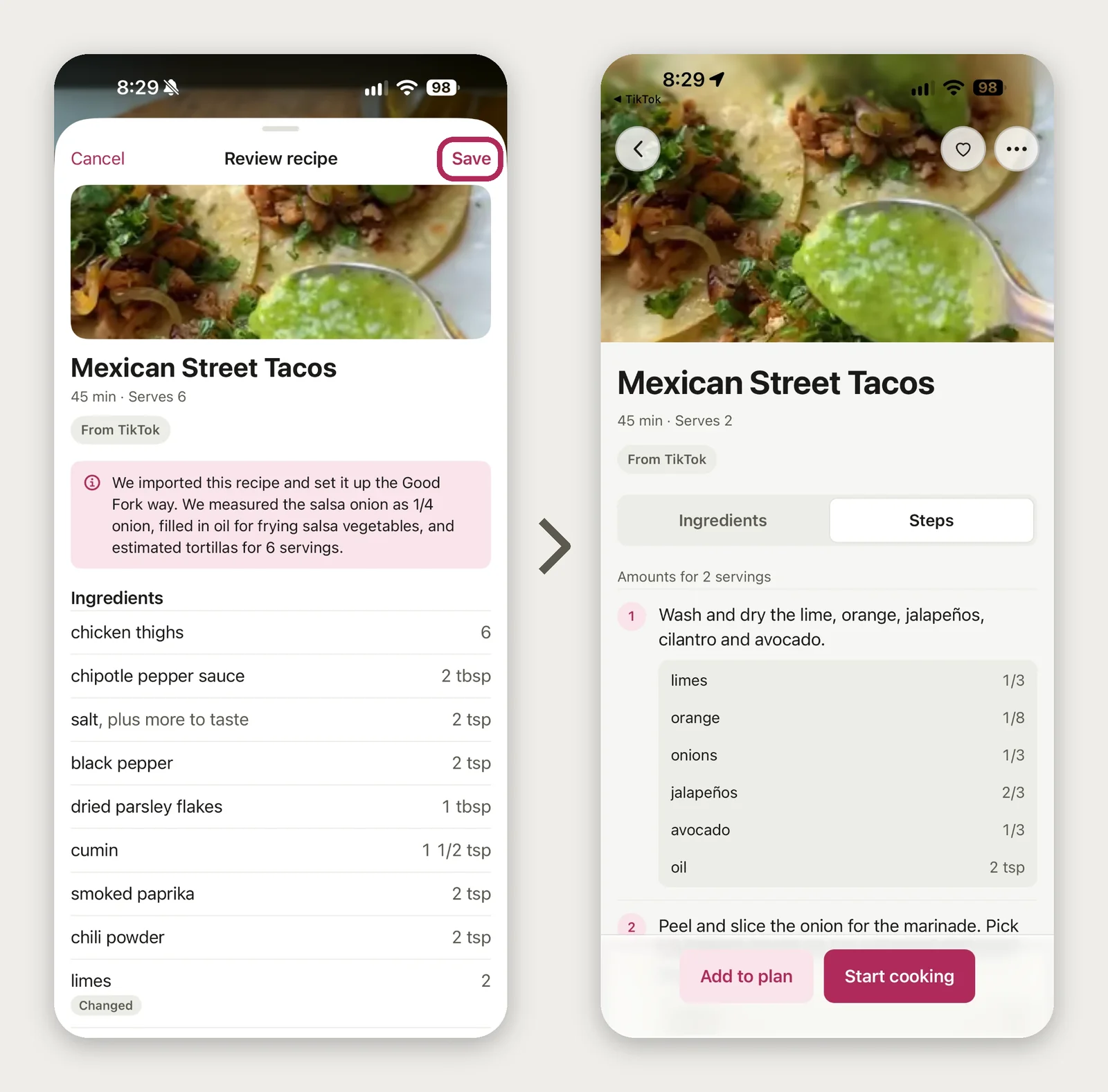
Once saved, the recipe is available in Good Fork whenever you want to make it. You can browse your collection, adjust the servings, or add it to your meal plan without having to find the original video again.
Or copy the link and paste it into Good Fork
If you don't see Good Fork in your sharing options, you can copy the link instead. In TikTok or Instagram, open the post's Share menu and select Copy link, then open Good Fork and paste the link into the recipe importer.
Good Fork will use the link to find the available recipe information and organize it for you to review. This approach also works with supported recipe websites, so you can use the same process for recipes you discover while browsing the web.
What if a recipe website blocks imports?
Good Fork works with even the most challenging recipe websites, including sites like Allrecipes. In most cases, you can simply share the recipe or paste its link into Good Fork, and we'll take care of the rest.
If you're still having trouble importing a recipe, there's another option. Open the recipe in Safari, select Print, then tap the Share icon and choose Good Fork. We'll read the recipe directly from the PDF and organize it into ingredients and cooking instructions, just like any other import.
What if the creator deletes the original post?
One benefit of importing a recipe into Good Fork is that you're saving the recipe itself, not just a bookmark to the original post.
Once you've saved a recipe, it stays in your Good Fork account unless you remove it or delete your account. If the creator later deletes their TikTok video or Instagram Reel, you'll still have access to the ingredients and instructions you imported.
The original video or website might no longer be available, but that doesn't mean you have to lose the recipe along with it.
When a recipe won't import
Social media recipes aren't always straightforward, and even a good recipe importer won't get every video right. Sometimes the creator leaves out important details, the original post isn't publicly accessible, or the information is simply difficult to find.
If you run into trouble, there are usually a few things worth trying:
The recipe is buried in the comments. Good Fork checks the first 50 comments it retrieves. If the creator's instructions are farther down, you can copy the recipe or take screenshots and import those instead.
The post is private. Good Fork can't access private social media content. If you can view the recipe yourself, try importing screenshots of the information.
Some measurements are missing. Good Fork may suggest amounts for ingredients that weren't fully explained. These are marked as Draft so you can review them before cooking.
A website won't load or import correctly. Try sharing the page directly from Safari. If that doesn't work, copying the instructions or importing screenshots may help.
It's always worth giving an imported recipe a quick review, particularly when the original creator hasn't provided detailed instructions. Good Fork lets you correct ingredients and cooking steps, so you can make sure everything looks right before saving it.
From saved recipe to dinner
Finding a recipe you want to try is the fun part. Figuring out when to make it, what ingredients you need, and who's cooking can take a little more effort.
That's why Good Fork goes beyond saving recipes. Once something is in your collection, you can use it to plan meals, build your grocery list, and cook with the people in your household.
Add your recipe to the week's meal plan
Once you've imported a recipe, you can add it to your meal plan whenever you're ready to make it. Maybe you know you want tacos on Tuesday, but you're not sure which night you'll have time for that pasta you saved.
Good Fork lets you schedule meals for specific days or keep them flexible for the week. You can decide what sounds good when you're ready to cook, without needing to plan every dinner down to the day.
That flexibility is particularly useful when your schedule changes or you just don't feel like making what you originally planned.
Build your grocery list automatically
When you add recipes to your meal plan, Good Fork builds a grocery list from the ingredients you'll need. Rather than switching between individual recipes and writing everything down, you'll have one list organized by grocery aisle.
Good Fork also combines matching ingredient quantities across recipes. For example, if one dish calls for two onions and another needs one, your grocery list can show three onions instead of separate entries for each recipe.
That makes it easier to see what you need for the entire week, rather than shopping for each meal individually. Good Fork can also help plan meals around ingredients you'll already be buying, allowing recipes to share ingredients and helping you avoid purchasing more than you need.
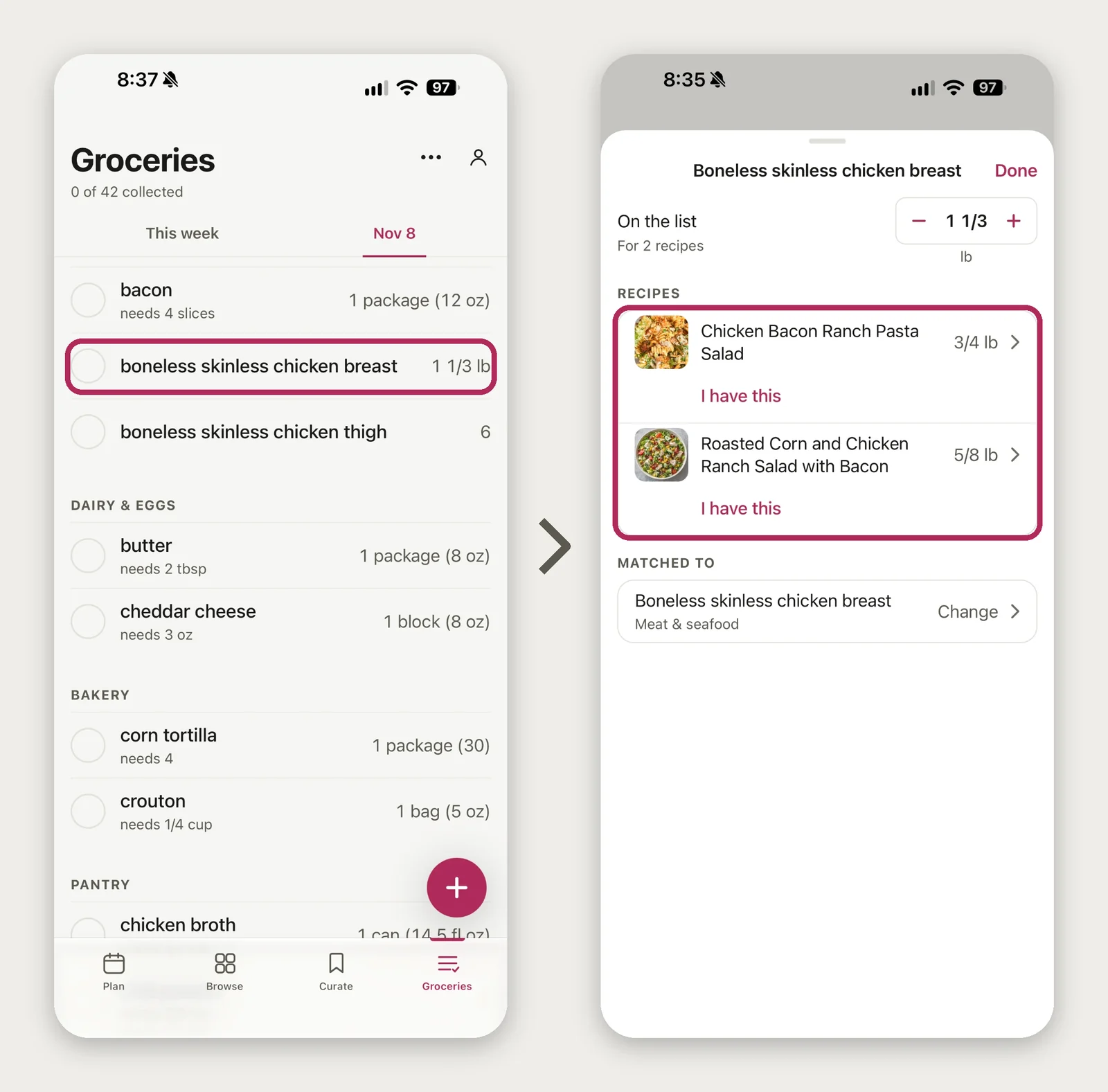
You can learn more about how Good Fork builds your grocery list.
Share recipes and meal plans with your household
Meal planning becomes a little more complicated when more than one person is involved. Maybe one person usually decides what's for dinner while someone else does the grocery shopping, or whoever gets home first starts cooking.
With Good Fork Pro, everyone in your household can have their own account while sharing the same meal plan, recipes, and grocery list. When someone adds a recipe to the plan, everyone can see it. And when someone checks an item off the grocery list, the change updates in real time.
That means the person at the store and the person at home can work from the same list without sending screenshots or texting back and forth about what's still needed. It also means a recipe you've saved from Instagram is available to the rest of your household when it's their turn to cook.
Learn more about shared meal planning with Good Fork.
Cook together from your own phones
Once it's time to make dinner, Good Fork's guided cooking mode helps you follow the recipe step by step, with built-in timers to keep track of what's happening on the stove or in the oven.
If you're cooking with someone else, you can each follow the same recipe from your own device. With Pro, you'll be able to see each other's progress through the instructions and share timers, so you don't have to keep asking which step you're on.
One person might be chopping vegetables while the other prepares the sauce, with both following along on their own phones. It's a simple way to make cooking together a little easier, especially when you're working through a recipe for the first time.
And that recipe you discovered while scrolling Instagram a few days ago? It's now dinner.
Frequently asked questions
Do I need an app to save recipes from TikTok and Instagram?
No. You can save TikTok videos to Favorites and Instagram posts to Collections for free, or use screenshots and Notes to keep the ingredients and instructions. A recipe app is useful if you want everything organized in one place, particularly when you're saving recipes from several sources or want to use them for meal planning and grocery shopping.
Do Instagram Collections work for organizing recipes?
Yes. Instagram Collections let you organize saved Reels and posts into folders, making it easier to find cooking videos later. However, they save the original posts rather than extracting the recipe, so you'll still need to find the ingredients and instructions yourself. Your saved post may also become unavailable if the creator removes it.
Can Good Fork read a recipe that's only said out loud in a video?
Yes. Good Fork can read spoken recipe instructions from supported public TikTok and Instagram videos, even when the creator hasn't written the ingredients in the caption. It organizes the available information into an editable recipe, allowing you to review the measurements and steps before saving it.
What if the recipe says "link in bio"?
You can visit the creator's profile and follow the link to their recipe website, or share the social media post with Good Fork. Good Fork can look for the creator's linked recipe page and import its accessible ingredients and instructions, even when the full recipe isn't included in the video.
What happens if the creator deletes the video?
If you've imported the recipe into Good Fork, the saved ingredients and instructions stay in your account unless you remove them or delete your account. The original video link may stop working, but your imported recipe remains available for planning, shopping, and cooking.
Is Good Fork free?
Yes. Good Fork is free to start, with 15 recipe imports, access to its recipe collection, weekly meal planning, grocery lists, and guided cooking. Good Fork Pro adds unlimited recipe imports, recipe Remix, expanded meal planning, and shared household features.
Does Good Fork work on Android?
Good Fork is available for iPhone and iPad, with Apple Watch support for cooking and grocery shopping. An Android version is coming soon.
A recipe you saved from TikTok or Instagram deserves a better fate than getting lost in your bookmarks. With Good Fork, you can save the recipe, plan when to make it, build your grocery list, and enjoy cooking it together.